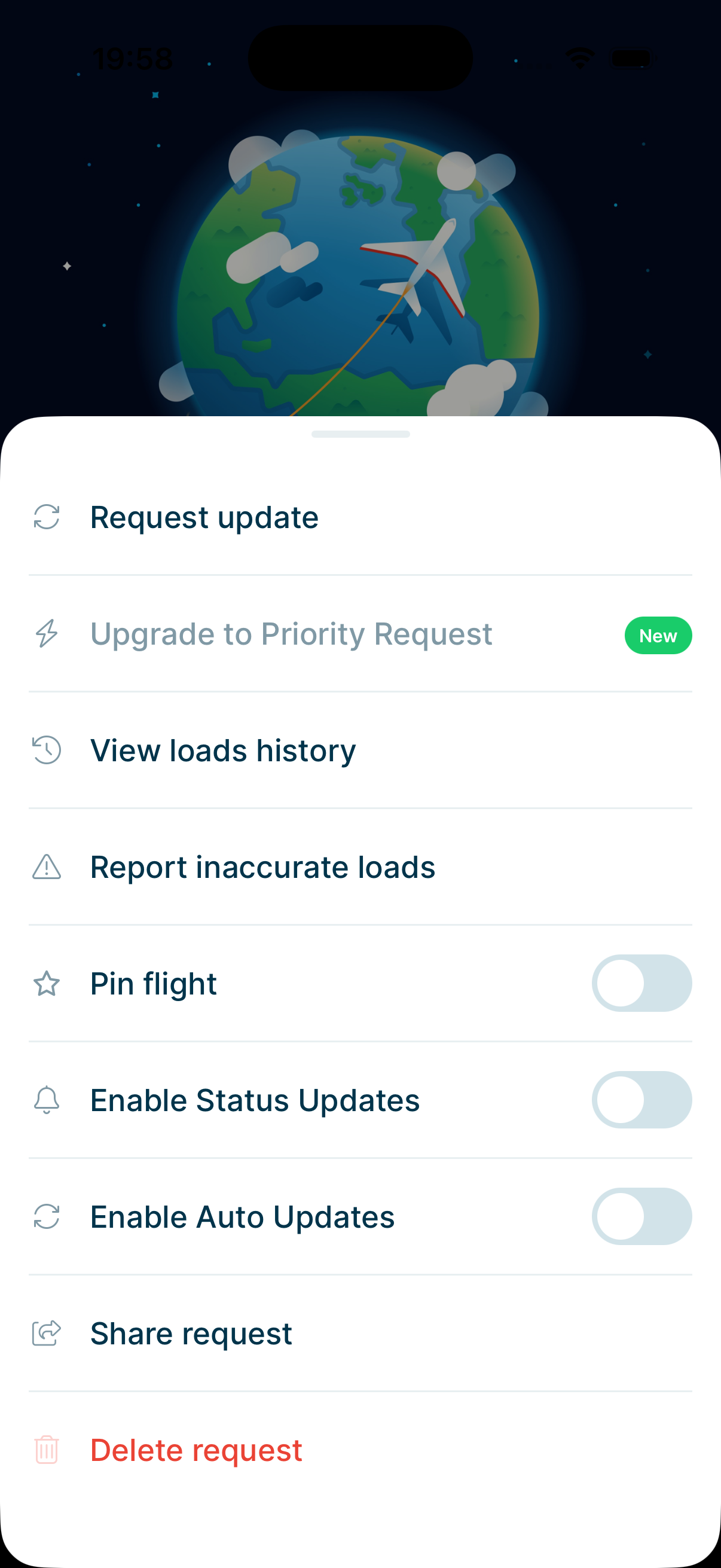
Here's how to see the full loads history for a flight you requested:
Each flight card has a ⋮ button on its right side. Tap it to open the options for that flight.
The app lists every set of loads members have submitted for this flight, newest first. The option stays grayed out until someone has submitted loads for the flight.
What each entry shows
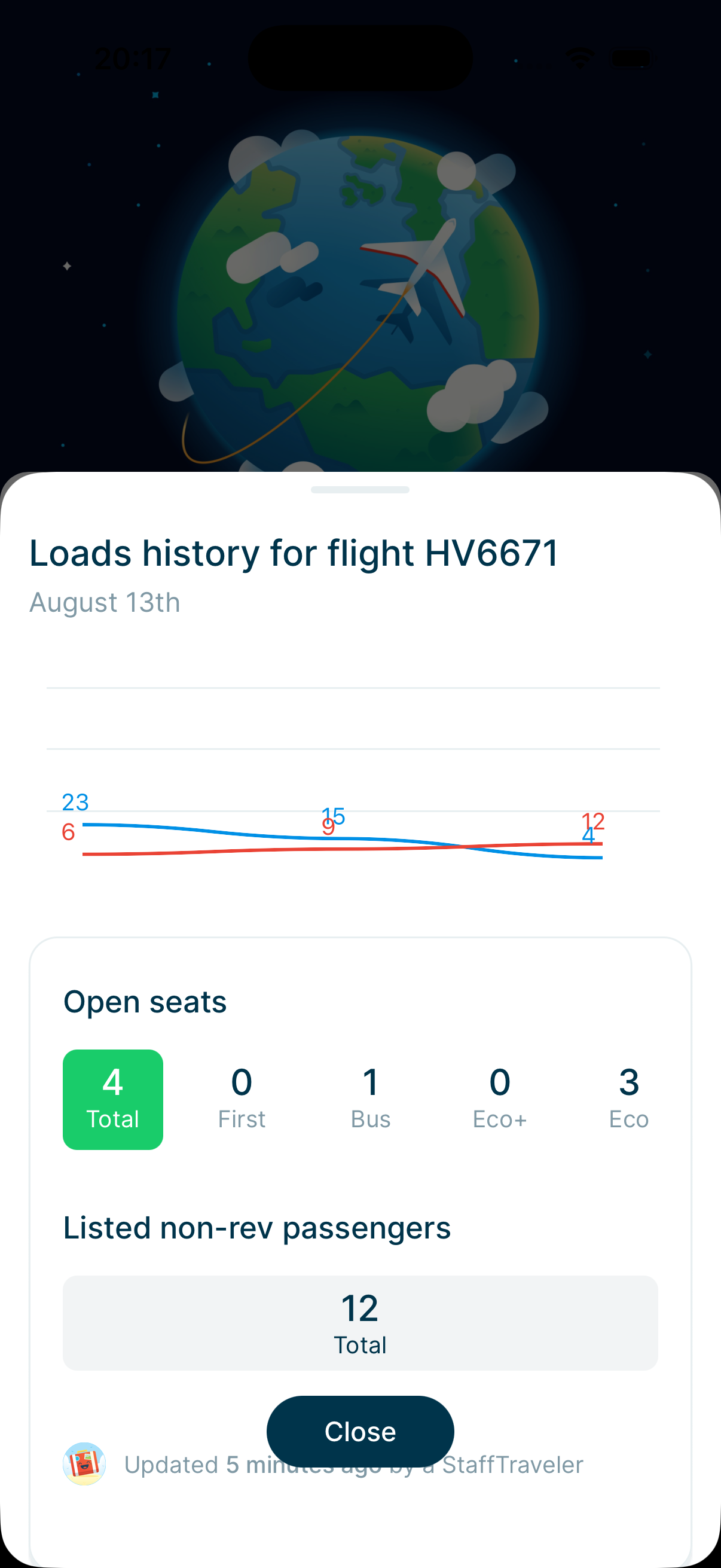
Every entry gives you the open seats as a total, then split by cabin: 'First', 'Bus', 'Eco+' and 'Eco'. Below that you see the number of listed non-rev passengers.
Each entry also shows when it was submitted, for example 'Updated 5 minutes ago by a StaffTraveler'. We never show who submitted the loads.
Reading the chart
Once a flight has two or more sets of loads, a chart appears above the list. It shows how the flight has filled up over time, which tells you more than any single report can.
The blue line is the total number of open seats. The red line is the number of listed non-rev passengers. Each point is labeled with its value, so you can read the numbers straight off the line.
If you only see a list and no chart, the flight has just one set of loads so far. Request an update, or wait for another member to submit, and the chart appears.