

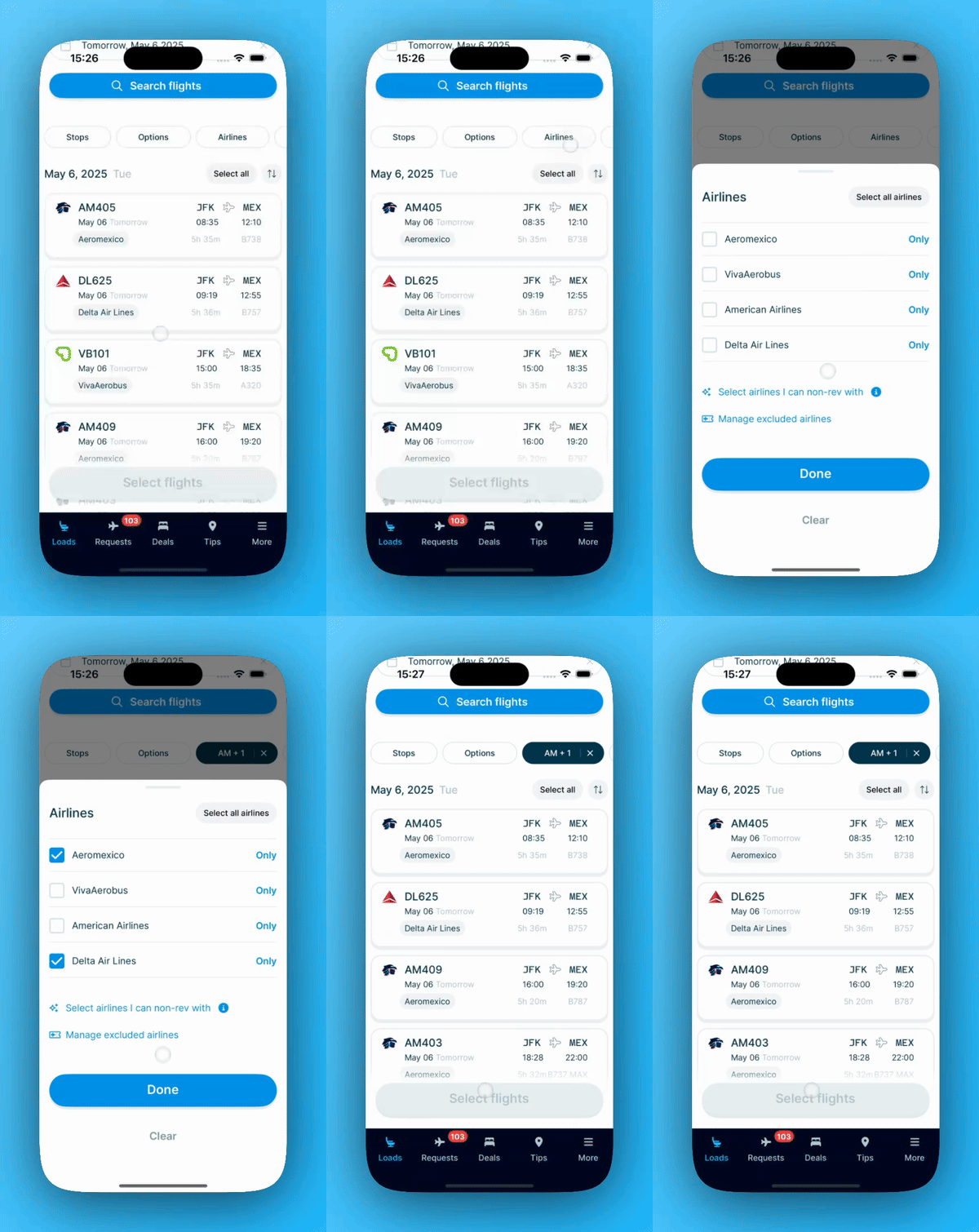
Search results often include airlines you have no travel agreement with. The 'Airlines' filter, above your search results, cuts the list down to what is useful to you.
Show only airlines you can non-rev with
This is the quickest way to clean up your results. Tap 'Airlines' above the search results, then tap 'Select airlines I can non-rev with'. We select the airlines you can buy standby tickets with, and filter your results to match.
Filter by alliance
Inside the same 'Airlines' filter, scroll to 'ALLIANCES'. You will find SkyTeam, Star Alliance, and Oneworld listed there. Tap an alliance to add its airlines to your selection. Tap 'Only' beside it to select that alliance and nothing else.
This is a fast way to narrow a busy route down to the carriers your own airline partners with. Alliance filtering works in the StaffTraveler app and in StaffTraveler for web.
Pick airlines by hand
Below the alliances, under 'AIRLINES', you will find every airline in your results. Tap an airline to select or deselect it. Tap 'Only' beside an airline to keep just that one.
Hide an airline from every search
Unticking an airline in the 'Airlines' filter tidies up the results in front of you, and it lasts as long as that search does. Run the next one and the airline is back.
Excluded airlines are the permanent version. Once an airline is on your list, we leave it out of every search from then on. The flights never reach your phone at all, so the airline stays out of your results, out of the airline filter, and out of your way. It is worth setting up for the carriers you have no travel agreement with, and for the ones you would never list on anyway.
Go to the 'Menu' tab and tap 'Profile & settings'.
Tap 'Excluded airlines'. The line underneath shows who is on the list, or 'No excluded airlines' if it is empty.
Tap 'Add excluded airline', search for the airline, and select it. It appears as a red badge. Repeat for as many airlines as you like.
Tap 'Done'.
To take an airline off the list again, open the same screen and tap the cross on its badge. Your next search includes it again straight away.
You can reach the same list without leaving your results: tap 'Airlines' above the results, then 'Manage excluded airlines' at the bottom of the sheet. The number beside it is how many airlines you have excluded so far.
Which one should I use?
Untick an airline in the 'Airlines' filter when you are cleaning up one particular search, or when you want to compare a couple of carriers side by side. Use 'Select all airlines' to put them all back.
Exclude an airline when you never want to see it again, on any route, on any day.
One thing to keep in mind: an excluded airline is gone from your connecting flights too, so a connection that happens to route through it will not show up. If a route looks thinner than you expect, your excluded airlines list is a good first place to look.