

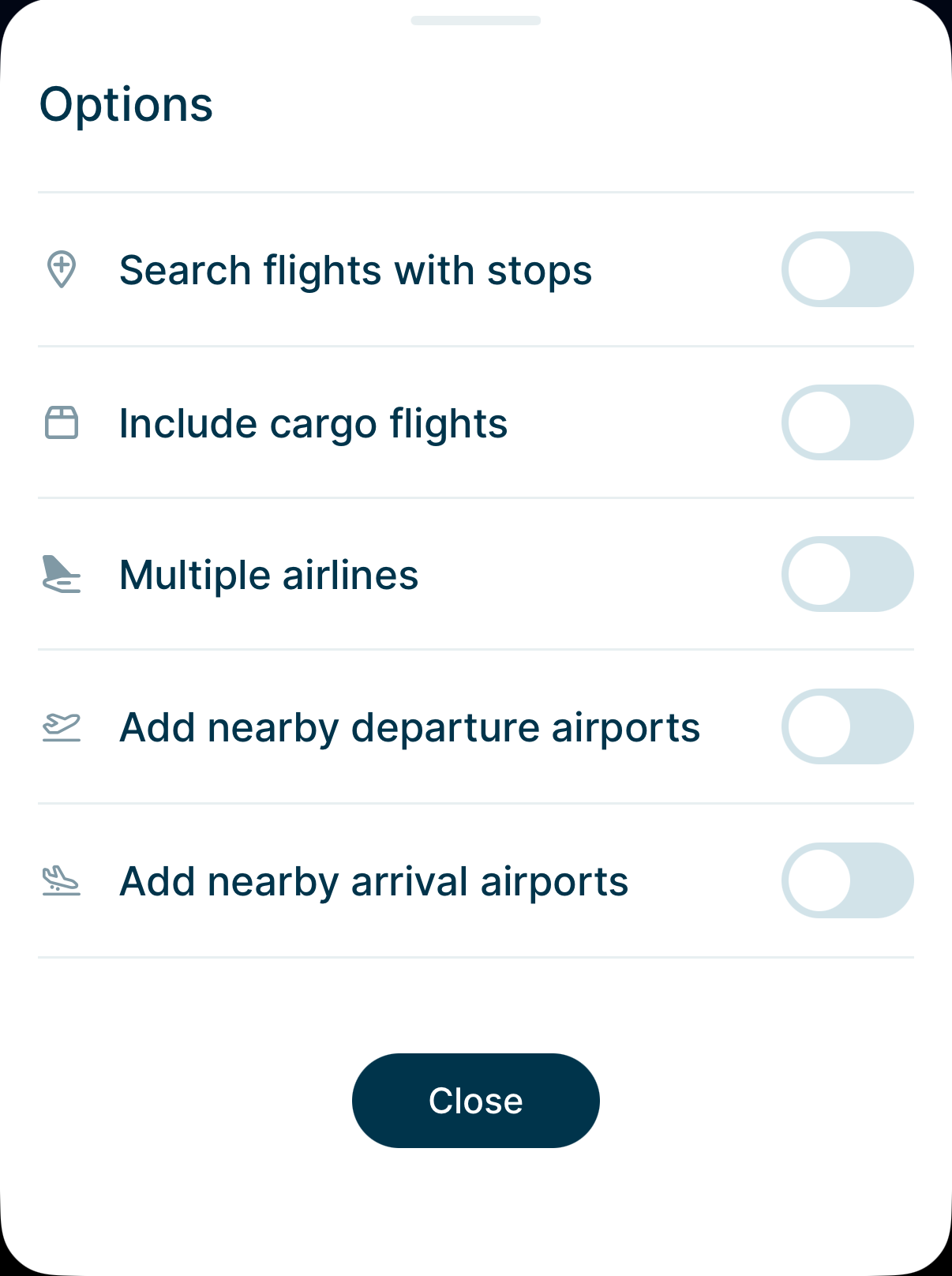
Search options widen or narrow your search before you run it. Open them with the 'Options' button on the search screen.
Search flights with stops
By default we show direct flights only. Turn on 'Search flights with stops' to include routes with a connection.
Two buttons appear: 'Max 1 stop' and 'Max 2 stops'. Choose how many connections you are willing to take.
Each leg is a separate non-rev flight, so you request loads for every flight in the route.
Include cargo flights
Most airlines fly freighters as well as passenger aircraft, and some let their staff travel on them. Search results leave those flights out by default, because for most members they are not an option.
Turn on 'Include cargo flights' to add them. Full cargo flights carry a small box icon next to the flight number, so they stand out at a glance.
Check with your own airline before you plan around one. Freighter travel usually has its own rules on who qualifies, what you can bring, and how you reach the aircraft.
Multiple airlines
A connection normally stays with one airline. You land, you wait, and you board the next flight from the same carrier. Turn on 'Multiple airlines' and we also build connections where the two legs belong to different airlines.
This opens up routes that no single airline flies. That matters most on a thin route, or on a long trip with an awkward middle. The catch is that each leg is its own non-rev journey. You need a travel agreement with both airlines, and you request loads for both flights. If you miss the first leg, you sort out the second one yourself.
Leave it off to see connections on a single airline only.
Codeshare flights stay out of your results either way. A codeshare is the same aircraft sold under a second airline's flight number. Listing it would show you the same departure twice. We show the operating airline's flight number, which is the one you request loads on.
Add nearby departure airports
Adds flights leaving from airports near your departure airport. Useful around cities with more than one airport, and in regions where a short drive opens up far more options.
When you turn this on, a slider appears so you can set how far to look. Choose anything from 25 km to 500 km, in steps of 25 km. The default is 100 km.
Add nearby arrival airports
The same idea for the other end of your trip. Adds flights landing at airports near your destination, with its own radius slider.
You can set a different radius for departures and arrivals. A tight radius at home and a wide one at your destination works well when you are flexible about where you land.